How to See Your Reposts on TikTok (and Who Else Can)
Quick Answer
To see your reposts on TikTok, open your profile and tap the Reposts tab, the icon with two arrows next to your videos grid. It lists every video you've reposted, newest first. Anyone who visits your profile can scroll the same list; reposts are not private.
Everything you've ever reposted on TikTok is collected in one place, and it's more public than most people think.
Finding your Reposts tab
- Open TikTok and go to your profile (the Profile button, bottom right).
- Look at the row of tabs above your video grid. After Videos, there's a tab with a two-arrows icon: that's Reposts.
- Tap it. Every video you've reposted is here, newest first, going back to your very first repost.
Scroll to the bottom and you'll likely find things you tapped Repost on years ago: old memes, trends that aged badly, 3am humor. That's normal; the tab never cleans itself.
Who else can see this?
Anyone who can see your profile can see your Reposts tab. On a public account, that means everyone: friends, employers, dates, strangers. On a private account, it's limited to approved followers, but there is no way to hide the Reposts tab specifically while staying public. (More on that in can you hide reposts on TikTok?)
That's exactly why the tab is worth an occasional audit: it's a public feed of your taste that you probably haven't reviewed since the day you tapped each button.
Reviewing a big repost history
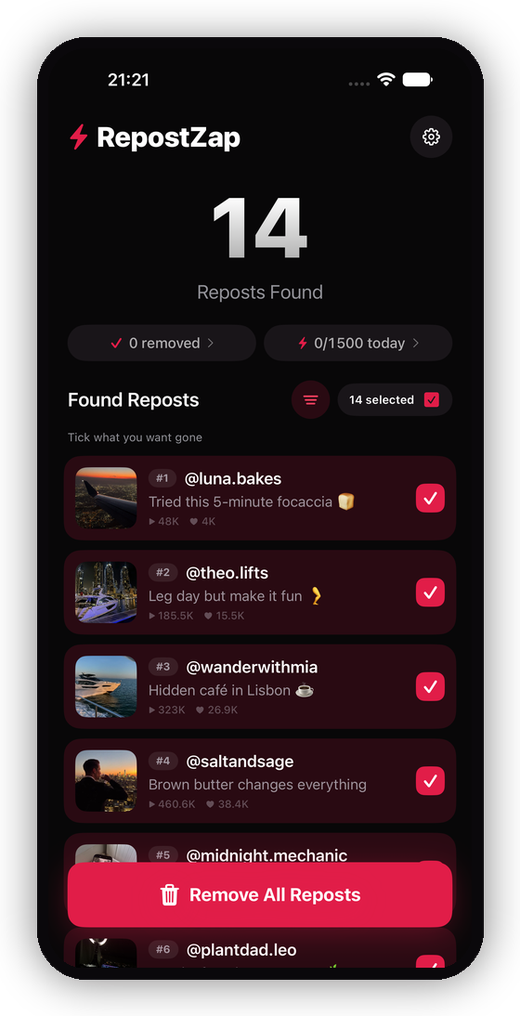
The Reposts tab is fine for scrolling, but it gives you no overview: no count, no dates, no way to act on more than one video at a time. If you want the full picture, RepostZap scans the tab and lists every repost with cover, creator, and view counts, so you can see exactly what's public and remove the ones you'd rather not have on display, in one pass, not one by one.
Frequently Asked Questions
Where is the Reposts tab on TikTok?
Can other people see my reposts?
Why is a video missing from my Reposts tab?
Does TikTok show a repost history with dates?
Clear your Reposts tab with RepostZap
Scan your profile, see every repost you ever made, and remove the ones you pick in one pass. Free to download.